Connect AWS Account Self-Managed
Use this process when another team or your customer must deploy the AWS connection and you cannot use the fully-managed onboarding.
This guide explains how to:
- Connect an AWS management account
- Allow that account to register additional child accounts later.
- Delete an account again.
Connect a Management Account
We recommend onboarding your AWS management account first. This enables CodeShield to evaluate SCPs and AWS IAM Identity Center settings for all accounts in the same AWS Organization.
After the management account is connected, use the child registration process for additional accounts.
-
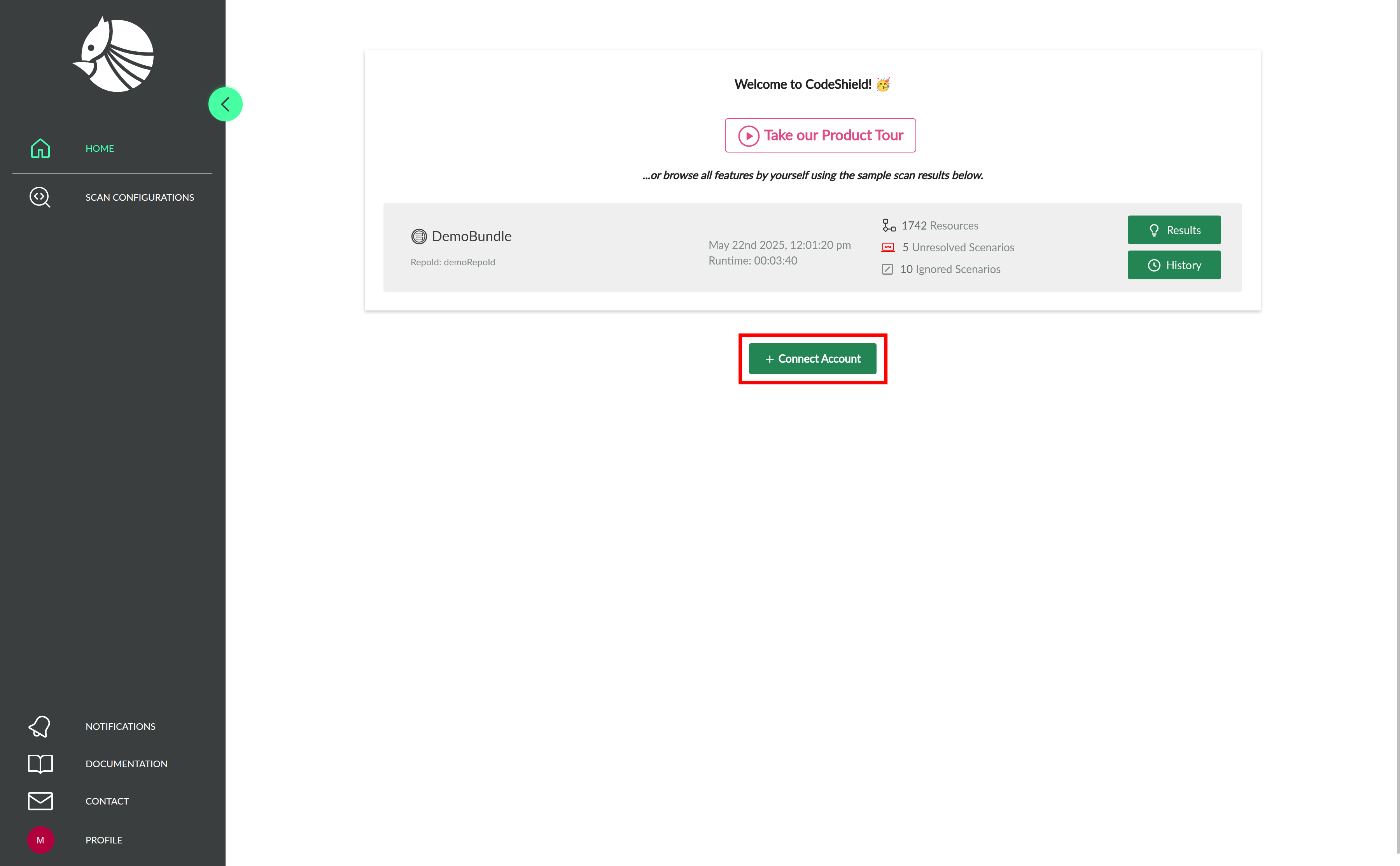
Open the Account Connection page.
-
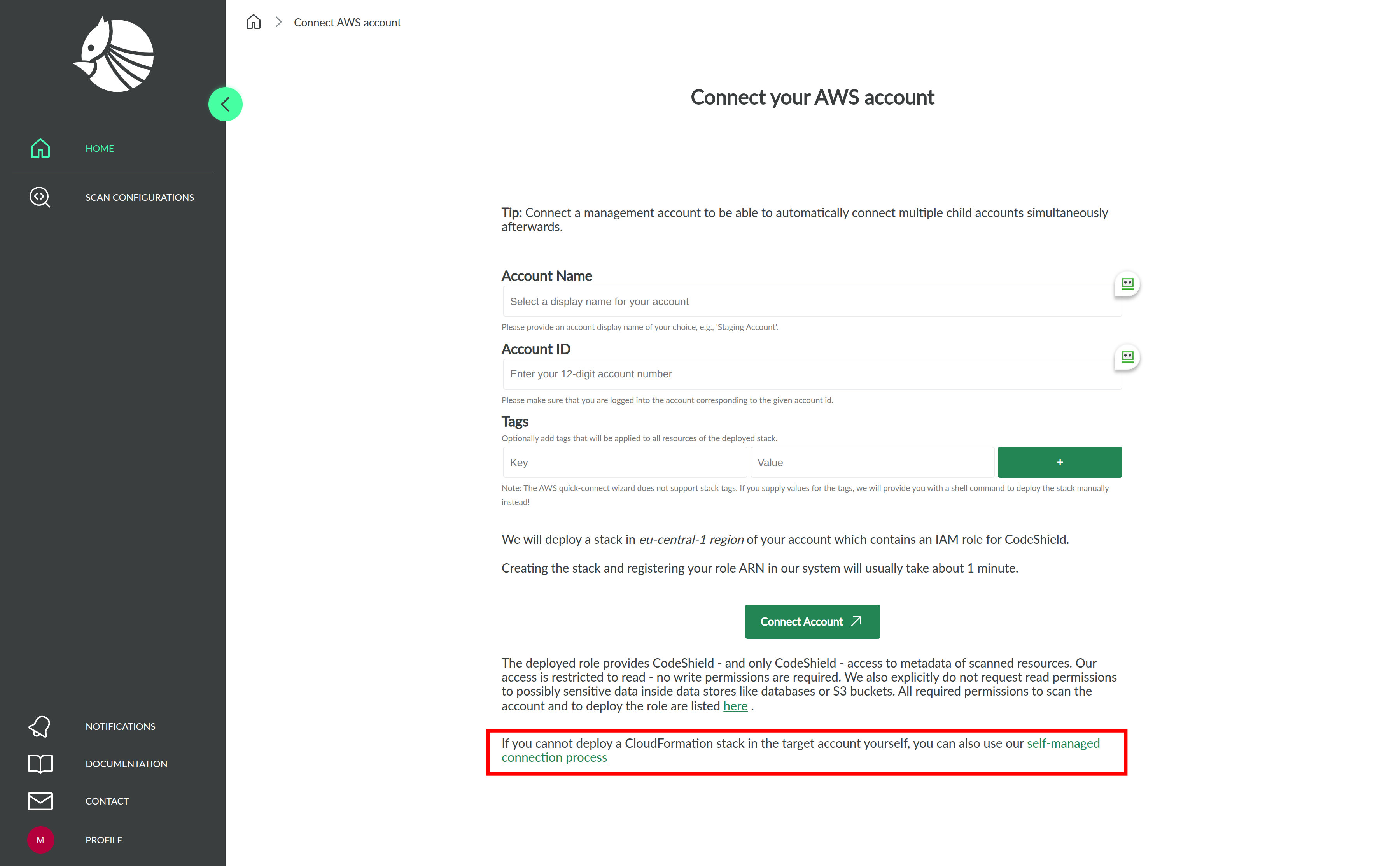
Scroll down and click Self-Managed Connection Process.
-
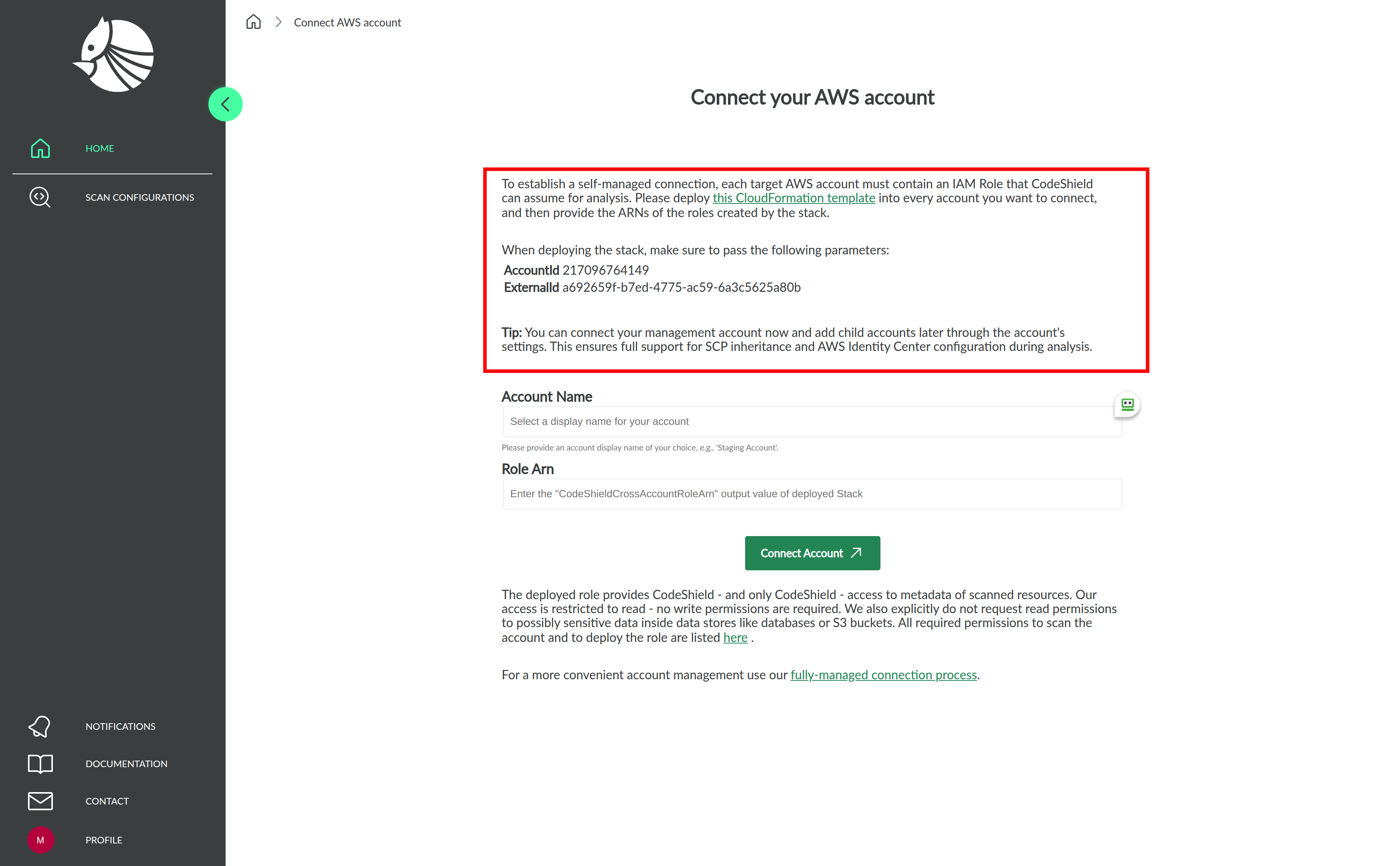
Download the CloudFormation connector template and forward it to the customer or internal cloud team that will deploy it.
Share the following information with them:- AccountId
- ExternalId
-
After the stack has been deployed in the target AWS account:
- Request the IAM Role ARN that was created by the stack.
- Enter this ARN into the connection form.
- Provide a descriptive account name.
- Click Connect Account to initiate the connection process.

-
Proceed by registering child accounts.
Register Child Accounts
After the management account has been connected, you can register additional accounts in the same AWS Organization.
-
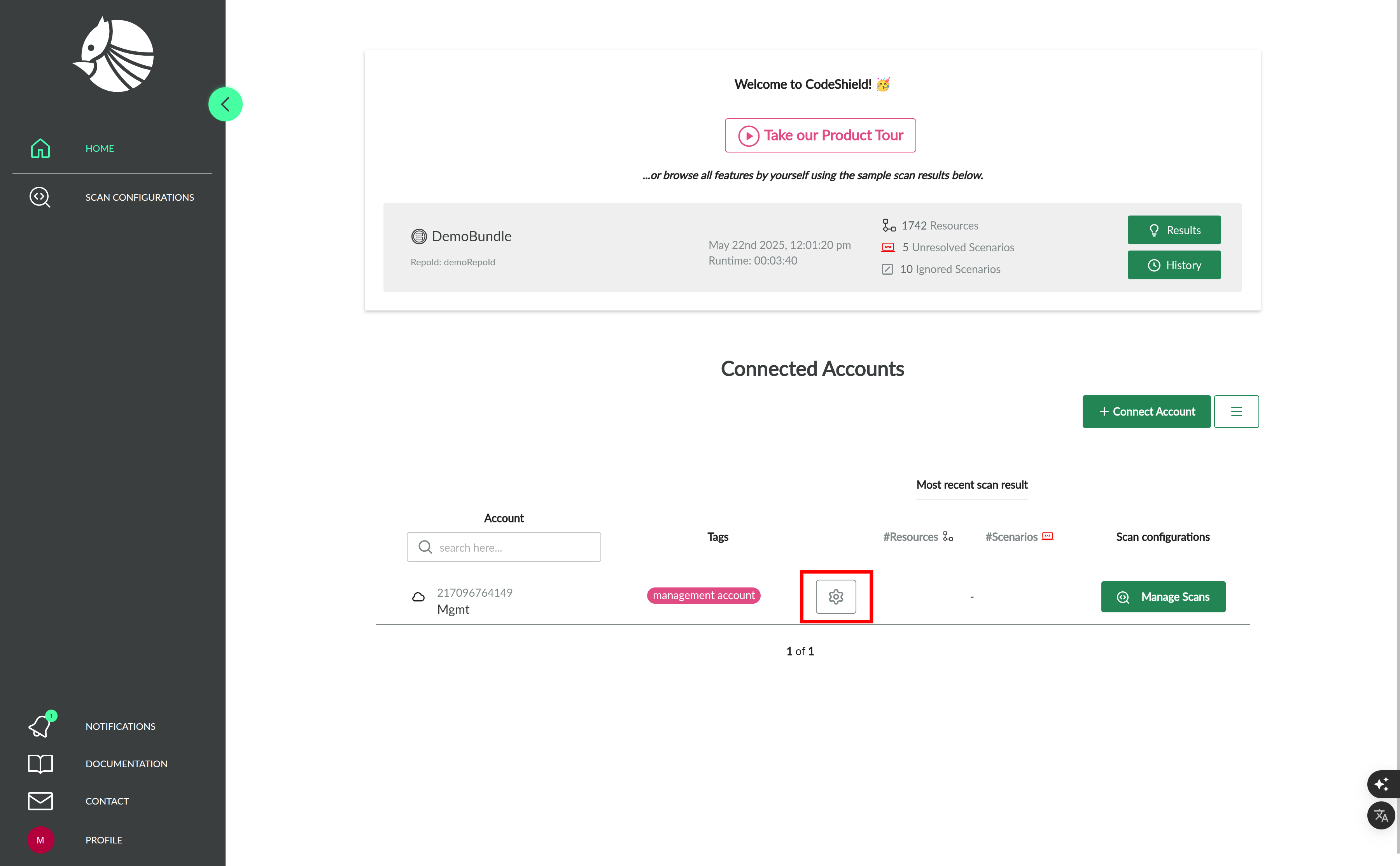
Open the Connection Settings of the connected management account.
-
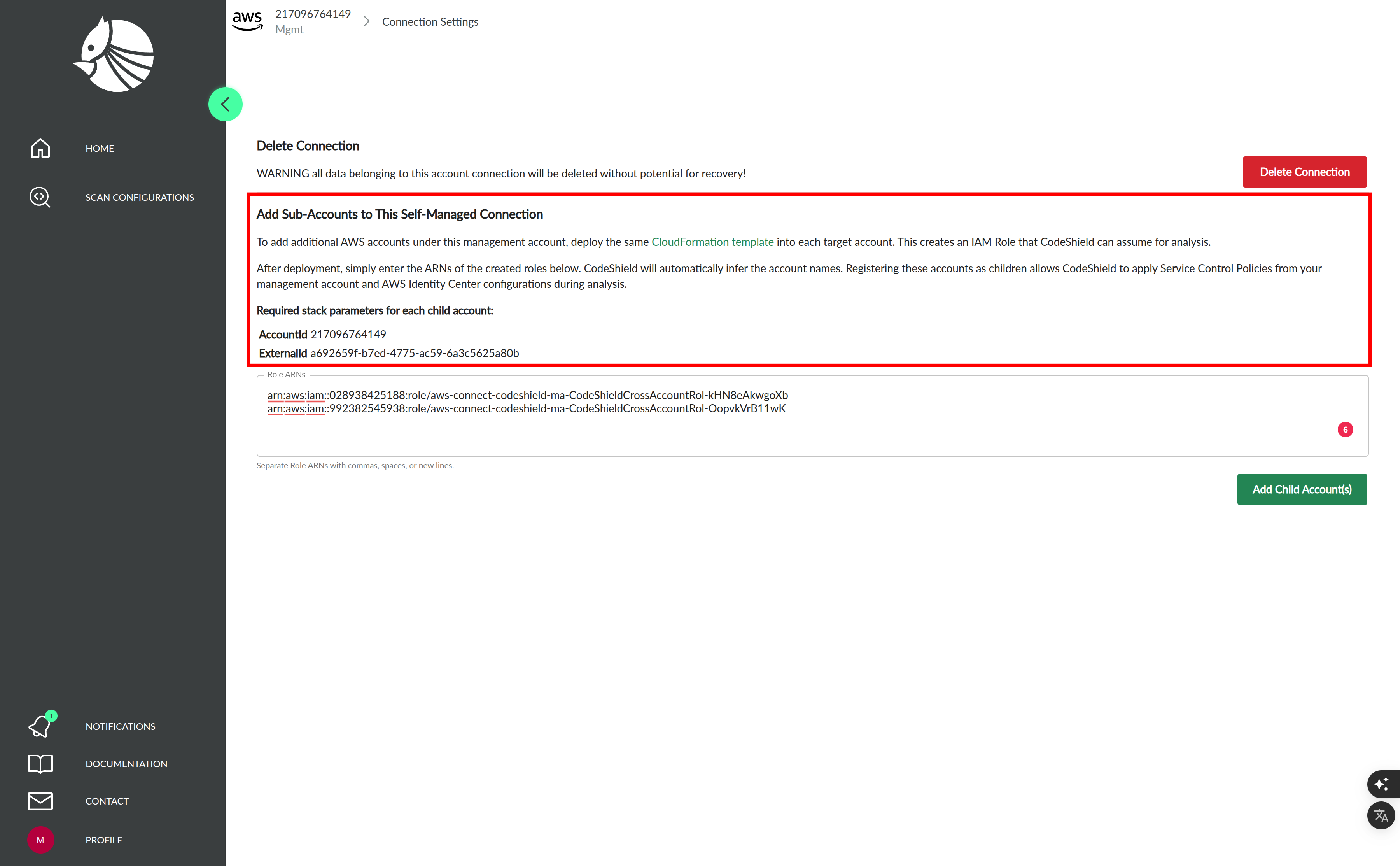
Delegate the child-role creation to the customer or internal cloud team.
Provide them with:- The CloudFormation stack template
- The AccountId
- The ExternalId
-
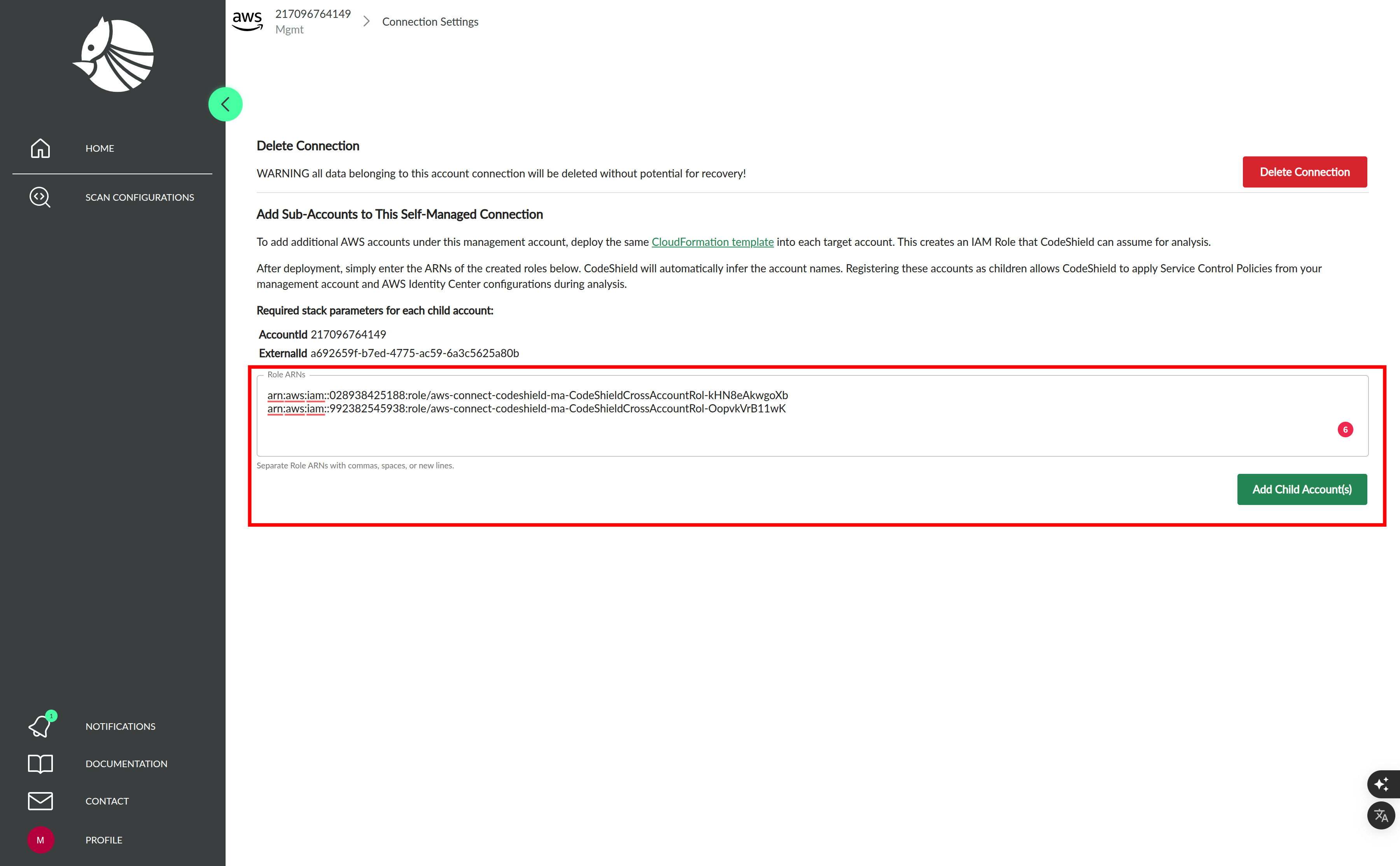
Once the IAM Roles for the child accounts are deployed, collect their Role ARNs.
-
Paste all ARNs into the input field.
You may separate them using:- Commas
- Whitespace
- Line breaks
-
Click Add Child Account(s) to complete the registration.
Deleting Accounts
To delete an account and all related data at CodeShield, navigate to the Connection Settings page fop that account
and click the Delete Connection button next to the account.
If you delete the management account, alls child accounts and their corresponding data will be deleted as well!